Your parent says they want to see grandkids' photos, maybe join the family group, maybe send a few updates. Then you open Facebook and the screen seems to offer everything at once, news feeds, friend requests, groups, reels, marketplace, notifications, settings, and a dozen privacy choices hiding behind tiny menu words. That's usually where the confusion starts, not because the person can't use Facebook, but because nobody needs the full app on day one.
Facebook for Seniors works best when it's treated like a few simple jobs, not a full digital makeover. Most older adults don't need every feature. They need a safe account, a small circle of people, and a routine that's easy to repeat.
Why a Slow Start Beats a Full Facebook Setup
The first time I walked a parent through Facebook, the mistake wasn't technical. It was trying to do too much at once. We made the account, then started exploring groups, then privacy, then friends, then photos, and by the end of the day the app felt busy instead of helpful. The better approach is much calmer, create the account, lock down the basics, and teach only the few actions that matter.
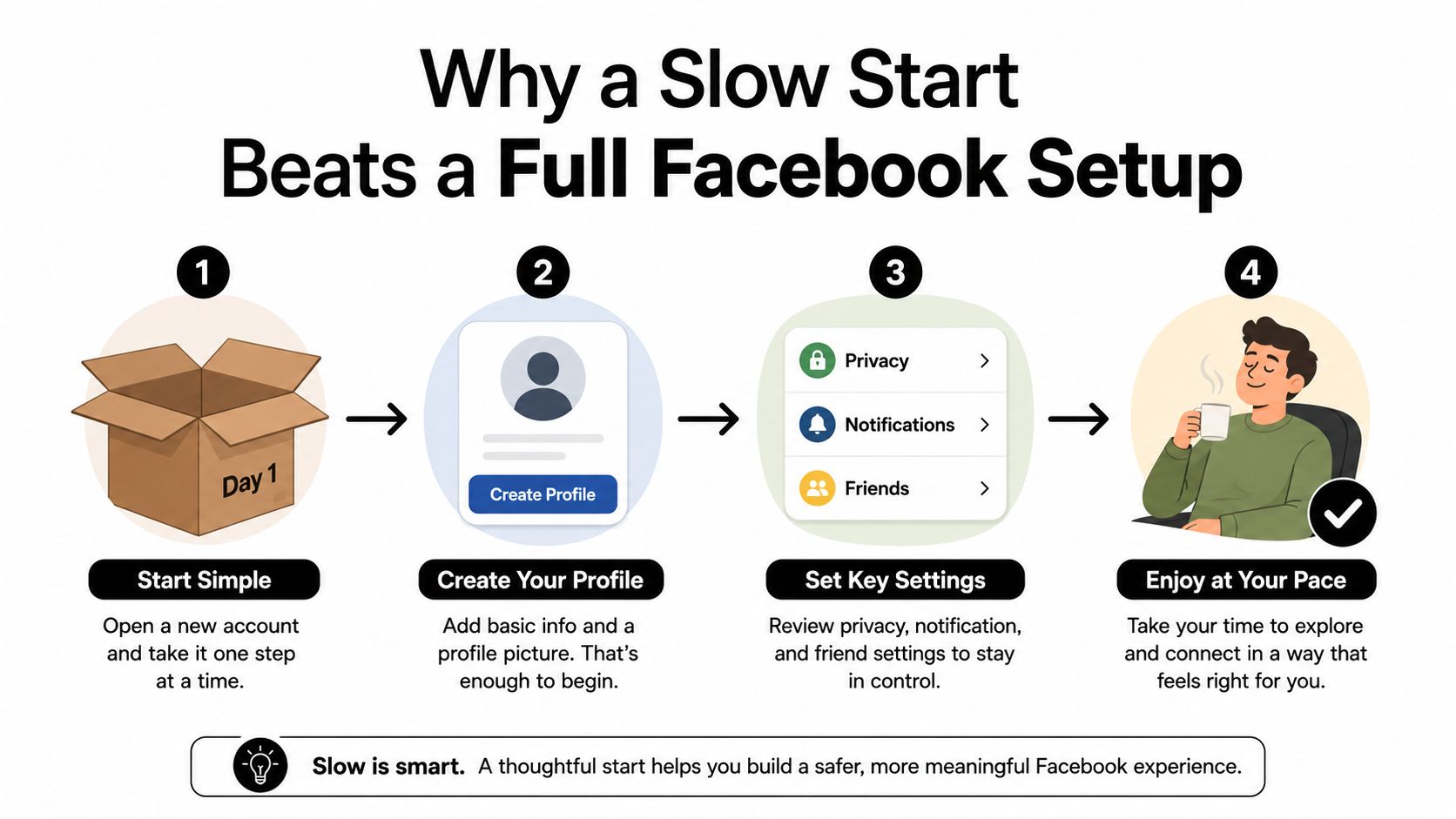
Start with the smallest useful version
That staged approach matches what older adults do with Facebook. Surveys show it remains widely used among adults 50+, with AARP reporting 72% of adults age 50+ on Facebook in 2026, unchanged from 2025, and Pew reporting 74% usage among U.S. adults 50 to 64 and 57% among those 65+. Earlier Gallup polling also showed long-term growth among older adults, which is another sign this isn't a niche habit, it's a mainstream communication channel for families with older members. Those numbers point to one practical truth, the platform matters enough to deserve a careful setup.
Practical rule: If a feature doesn't help the senior talk to family, see family photos, or stay safe, leave it for later.
A slow start also reduces the two problems that derail most first-time users, oversharing and confusion. The account doesn't need to be “fully configured” before it becomes useful. It only needs to be secure and understandable. That's why the first goals should be simple, create the profile, make sure only the right people can see it, and practice the three actions that will get used most often.
What the first month should feel like
The first month shouldn't feel like training for a new job. It should feel like learning a familiar hallway in a new house. One day is enough to create the account and set the safety basics. Another day can be spent on photos and posts. A third can be used for Messenger and family communication.
That pace helps caregivers too. If you're supporting a parent, it's much easier to answer one question at a time than to troubleshoot a dozen settings after something has already gone public. And because older adults often worry about privacy, the setup has to start with protection, not exploration. The usability study on a senior-focused Facebook prototype found the native app didn't match older users' privacy and family-focus needs, which is exactly why a staged rollout works better than handing over the whole platform at once.
Creating the Account and Securing It on Day One
The cleanest way to begin is in a browser. Type facebook.com into the address bar, press Enter, and choose Sign Up. Facebook will ask for a name, an email address or phone number, a birthday, and a password, and the basic senior-friendly guidance says that password should be at least 8 characters long. That's the point where many people rush, but it's better to slow down and make the account easy to recover later.
Set up the account with recovery in mind
Use a password the senior can remember without writing it on a sticky note near the computer. A long phrase is often easier to keep straight than a random jumble. After the account is created, add a recovery email address or phone number right away, because that's what makes it possible to get back in if the password gets lost or the account gets locked.
Then turn on two-factor authentication if Facebook offers it in the setup path. That extra step means someone needs more than the password to get in. It's one of the simplest ways to add protection without making daily use difficult.
If the parent can still read text messages and check email, recovery options should be set before any posting starts.
The birthday field deserves care too. Facebook uses it to personalize the account, and older adults are often targeted with age-specific scams. Enter the birthday where the service requires it, but don't treat it like a social detail to share widely on the profile. Private setup and public display are not the same thing.
Turn on alerts before the first post
After the account exists, go to the security area and enable login notifications. The practical reason is simple. If someone tries to log in from an unfamiliar location, the owner gets an email or text. That gives the family time to respond before a stranger takes over the account.
AARP's privacy reporting is useful here because it shows the concern is not theoretical. It found 52% of Facebook users age 50+ were “very concerned” about privacy, up 23 points since 2011. That makes security setup part of the user experience, not an optional tech bonus.
Finish the day one setup with a quick check of the account details. Make sure the email address works, the phone number is current, and the password is something the senior can say out loud without stumbling. Then stop. A secure account is the goal for day one, not a crowded profile.
Choosing Who Can See What With Privacy Settings
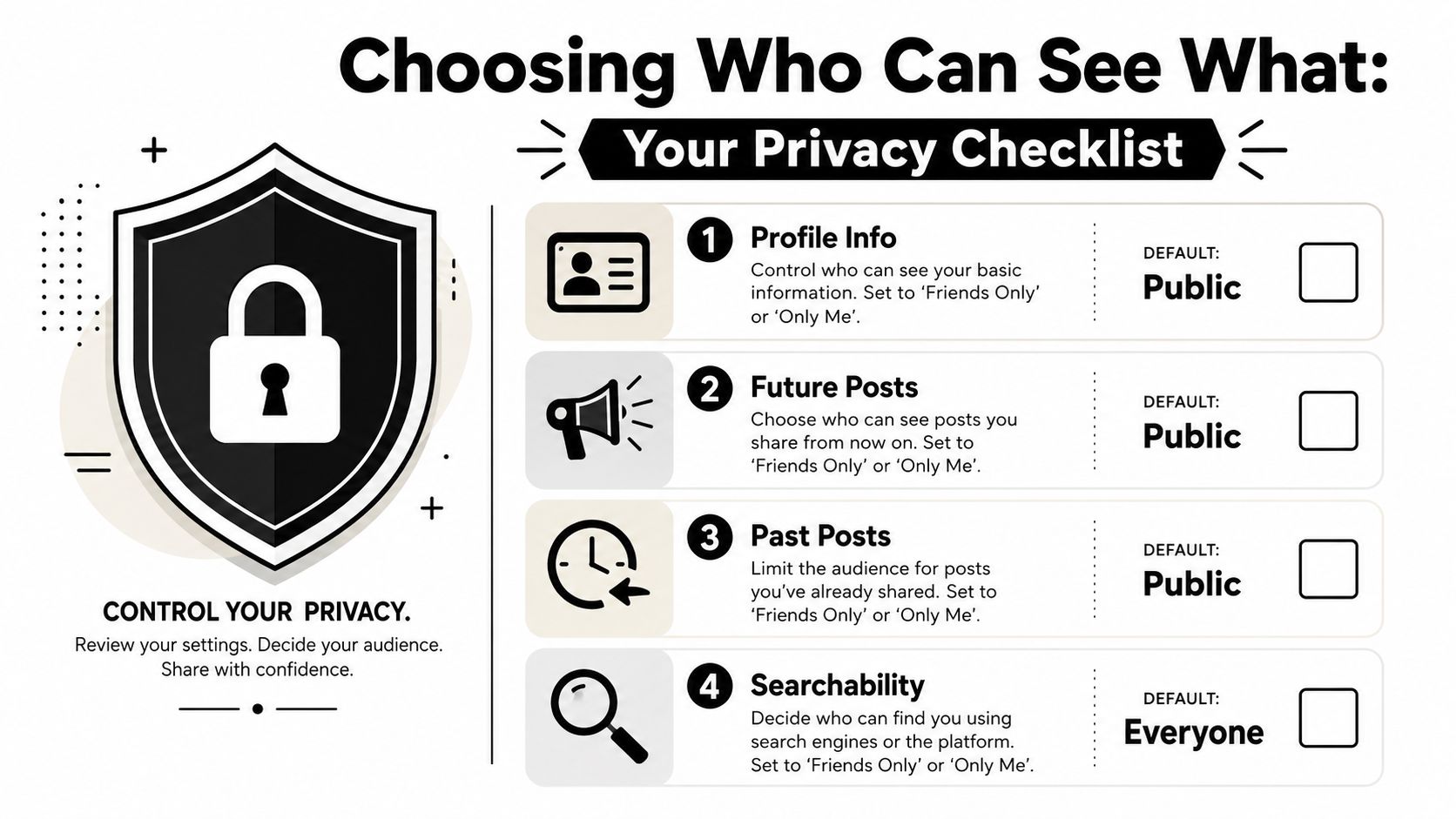
Facebook privacy is easier to manage when you stop thinking in menus and start thinking in visibility choices. The question isn't, “Where is the setting?” The question is, “Who should see this?” For most seniors, the safest starting point is to assume the default audience is too wide and narrow it on purpose.
Treat every share as a visibility decision
A practical way to explain it is this. If the post is a family photo, choose Friends or a specific list. If it's a holiday date, travel plan, or address detail, think twice before posting at all. If it's a profile field the person doesn't need strangers to see, set it to Only Me when possible.
That framework matters because audience controls are easy to skip when the app is moving quickly. Yet older adults do not need broad visibility to stay connected. They need the right people to see the right things. The same logic applies to tags, searchability, and friend requests. A person doesn't need to be invisible. They need to be intentional.
Simple rule: Use the widest setting only when there's a clear reason. Everything else should be narrowed first.
The privacy issue is especially important for Facebook for seniors because the platform is often used for routine contact, not public performance. AARP's data on privacy concern shows why that matters. Older users are engaged enough to benefit from the app, but wary enough that a wrong setting can create real stress.
Walk through the settings in a family example
Say your parent wants to share birthday photos with children and grandchildren, but not vacation dates or home details. The starting move is to check the default audience for future posts and set it to a trusted group instead of everyone. Then review whether profile information is searchable, because someone who finds the account by name doesn't need to see more than necessary.
Friend requests deserve their own rule. Don't accept based on the name alone. If the request claims to be a cousin, a former neighbor, or a new “friend” from church, confirm through another channel first. Tag review is useful too, because it lets the person approve mentions before they appear on the profile.
There's one more thing caregivers should explain in plain words. Facebook's visibility settings aren't about secrecy, they're about control. Once that idea clicks, the rest of the setup becomes easier. The senior can post without feeling exposed, and the family can stop worrying that every update is public by default.
The Three Things Seniors Actually Use on Facebook
Once the account is secure and the privacy settings are narrowed, the daily routine can stay very small. Most older adults only need three things at first, scrolling the feed, posting a short update or photo, and using Messenger to talk with family. Anything beyond that can wait until the basic rhythm feels comfortable.
Reading the feed without getting lost
The feed is the list of updates from people and pages the account follows. For a new user, the easiest task is just scrolling slowly and reacting with a like or heart when something looks familiar. That gives the senior a low-pressure way to learn how Facebook feels without needing to post immediately.
Text size matters here. If the words look tiny, increase the display size on the phone or tablet before trying to teach anything else. The same goes for videos with captions. If the person can't hear well, captions make the app more usable without adding complexity.
Posting one photo or one sentence
Posting should be taught like sending a simple note. Click in the post box, type a message, review it, and press Post. If there's a photo, use the Photo/Video button, pick one or more files, and then post.
A good first post is boring in the best way, something like “Lunch with the grandkids today” or “Beautiful walk at the park.” The point is not to master content creation. The point is to prove the senior can share something small without help.
Use Messenger for the people who matter most
Messenger is often the easiest part for seniors because it feels like texting. Keep the first contacts to family members who already know how the senior likes to communicate. Short check-ins work best, one message to say hello, one photo from a family event, one quick reply to a question.
A small table helps separate the three daily actions:
| Action | What it looks like | Why it helps |
|---|---|---|
| Feed | Scroll, like, react | Builds confidence without pressure |
| Post | Write a short update or add a photo | Shares life with family |
| Messenger | Send a private note | Keeps family communication simple |
The mistake to avoid is piling on Groups, Marketplace, Reels, and Pages before the basic routine is steady. Those tools can be useful later, but the first win is simple, the senior can open Facebook, recognize the screen, and do one useful thing without help.
Recognizing and Responding to Common Scams
A lot of Facebook scams work because they arrive looking normal. A friend request has a familiar name. A message sounds urgent. A post link looks like a video or a news item. For older adults, the safest response is not to trust the first look. It's to pause, verify, then act.
The scams that show up most often
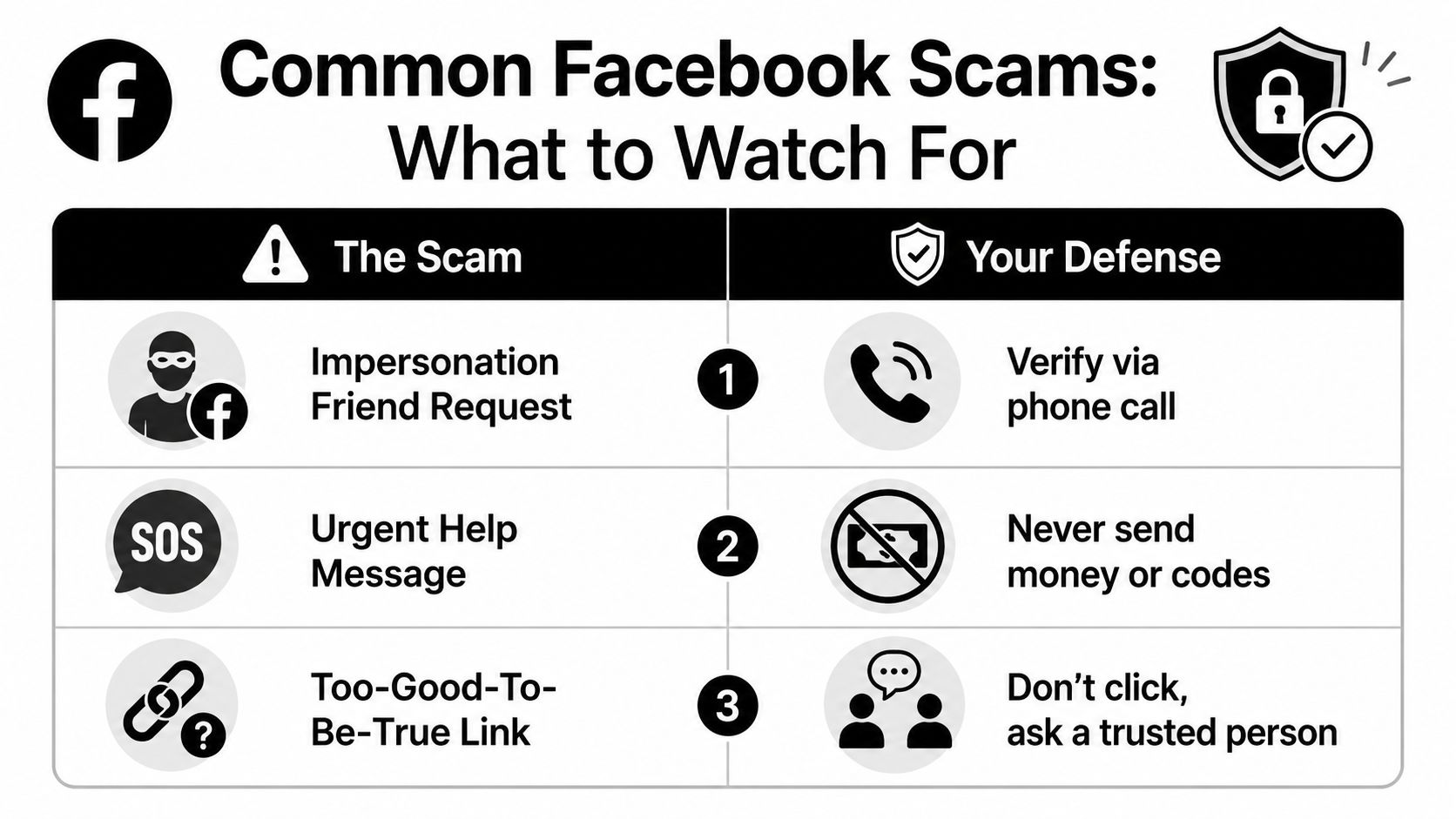
One common trick is the impersonation request. A profile uses the name or photo of someone the senior knows, then sends a friend request. Another is the urgent-help message, where “a grandchild” or “relative” needs money or a code right away. A third is the fake account notice, which tells the user to verify the account through a suspicious link.
Romance messages and “too good to be true” links also show up often enough to deserve a firm rule. If the message pushes emotion, money, secrecy, or urgency, it gets the same response every time, no reply until it's checked by another channel.
What to do before clicking or sending anything
If a friend request seems odd, verify it by phone or text before accepting. If someone asks for money or verification codes in Messenger, do not send them there. If a link looks strange, ask a trusted person to check it before clicking.
Practical rule: A real family member won't mind a quick phone call to confirm something important.
There's also a safety issue outside the app itself. One guide on Facebook safety for people over 55 warns against oversharing travel plans, and gives the clear example of posting that you'll be out of the country for a month. That kind of post can make a home more visible to burglars, so travel updates belong in private messages or after the trip, not before.
For a broader look at how older adults can get pulled into financial abuse, this article on financial exploitation of elderly people is a useful companion read.
If you want a quick education break that's more about the broader picture of online wellbeing, how carvedilol helps your heart is an example of how clear plain-language explanations can make complex topics easier to trust.
To make the pattern stick, caregivers should repeat one phrase: pause, verify, then act. It's simple enough for a senior to remember and strong enough to stop most bad clicks before they happen.
Using Facebook as a Family Caregiving Channel
Facebook becomes much more useful when the family stops treating it like a public social feed and starts treating it like a private coordination tool. For many households, that means one small group for siblings, one simple pattern for check-ins, and one person who knows where the important updates live. That's less noisy than group texts and easier to revisit later.
Build a quiet family group
A private family group works best when roles are clear. One person can post appointments, another can share photos, and everyone else can read and respond when needed. The senior doesn't need to be dragged into every thread unless the message affects them directly.
Facebook's value shifts. It's not mainly about broad discovery. It's about narrow, trusted communication. That fits caregiving better than a public profile full of notifications and unrelated chatter.
Turn down the noise before it becomes a burden. Birthday pings, fundraiser alerts, and busy groups can all create fatigue, especially for someone already managing appointments, medication questions, or transport details. Use notification settings to keep the important group active and mute the rest.
Make the routine predictable
A predictable check-in window is easier than constant monitoring. For example, one family member checks the group in the morning, another in the evening, and the senior only has to look when there's something relevant. That keeps the app from becoming a source of pressure.
Messenger is good for quick questions. The private group is better for shared logistics, appointment times, or updates that everyone needs to see. When family members split duties clearly, the senior feels supported instead of watched.
If your family needs more structure for the emotional side of caregiving, this guide to online caregiver support groups pairs well with the communication routine described here.
A helpful way to think about it is this, Facebook can either add clutter or reduce it. The difference comes from choosing a small circle, a steady rhythm, and a few clear rules about who posts what. Done that way, the app becomes part of caregiving logistics instead of another task on the family's list.
Quick Fixes and a Caregiver Checklist
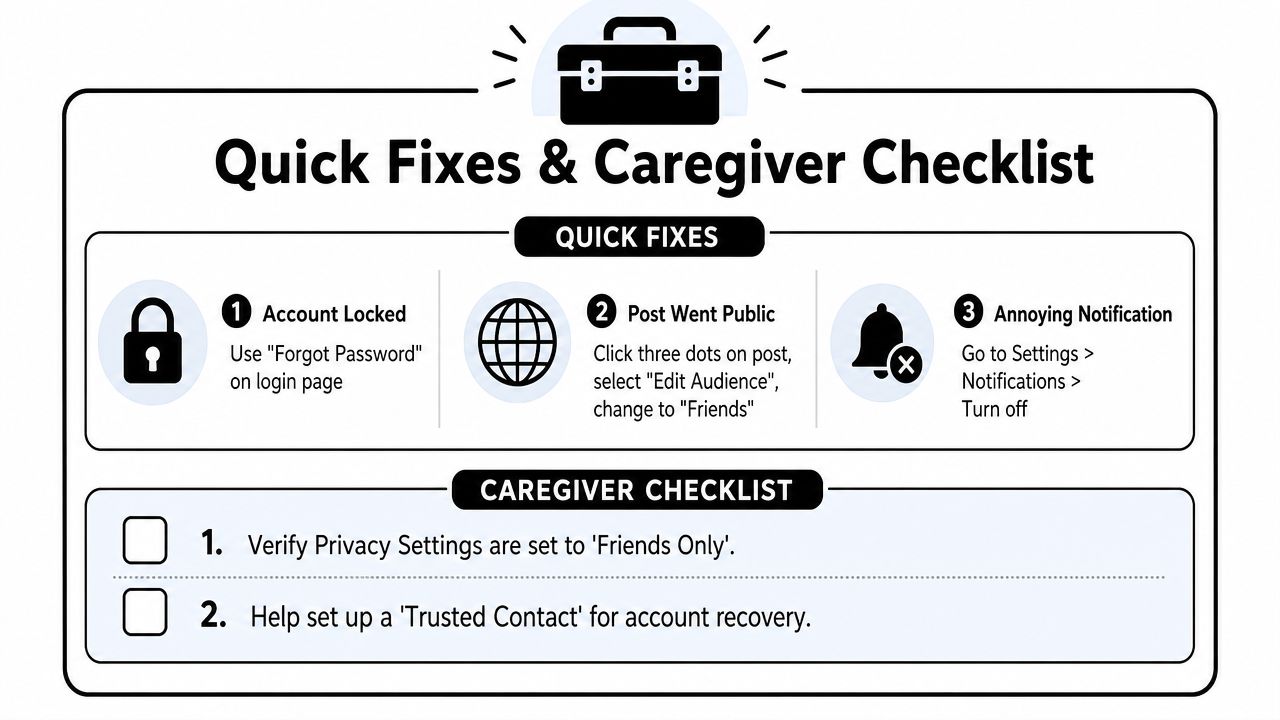
Fast fixes for the most common problems
If the account gets locked, use Forgot Password on the login page first. If a post went public by mistake, open the post, click the three dots, and change the audience. If notifications are getting annoying, go to Settings > Notifications and turn off the ones that don't matter.
For suspicious accounts, unfriend or block them right away. Facebook also has built-in tools for hacked accounts and reporting a problem, and those are worth finding before anything goes wrong. A calm fix is easier when the family has already practiced the steps once.
The checklist to keep nearby
If you want a simple caregiver reference, use this one-page list from the caregiver checklist template:
- Account created: Email or phone number added, password remembered, recovery info saved.
- Security on: Two-factor authentication and login alerts turned on.
- Privacy narrowed: Default audience set to friends or a smaller list.
- Three basics practiced: Feed, post, Messenger.
- Scam rules reviewed: Pause, verify, then act.
- Family channel set: Private group or Messenger routine agreed on.
- Notifications tuned: Only the useful alerts stay on.
A helpful extra, if your family also wants broader support tools, is to look at find an AI companion for seniors as a way to think about non-family digital support alongside social connection.
Keep the goal small. A senior who can log in safely, see the right people, and avoid obvious scams is already using Facebook well. If you want a practical next step, sit down with your parent this week, open the account together, and walk through the checklist one item at a time. Family Caregiving Kit can help you keep that process organized, calm, and easy to revisit when the next question comes up.